A quick way to help reduce the width of a chart is by altering the position of parents above their children.
The following is a basic chart, where the parents are centred above their children, which is the default.
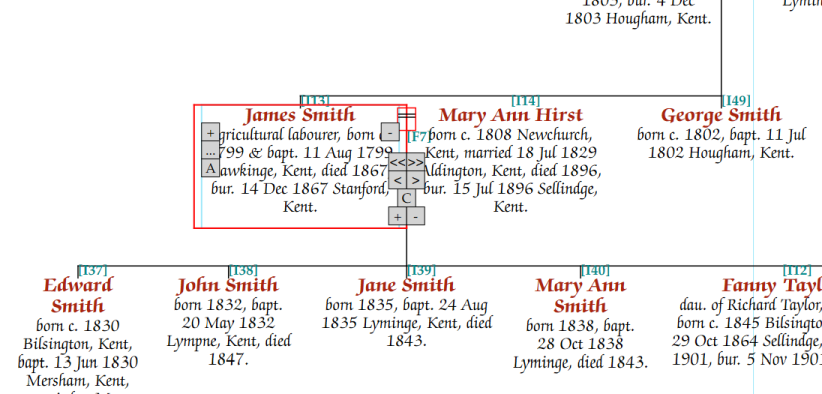
When in editing mode, if someone is selected, then a range of grey buttons appear around them as shown below:
These grey buttons allow you to size and position them.
The “+” and “-” either side of the person’s box will make them wider (“+”) or narrow (“-”). By pressing these several times, we can make someone much wider or narrower:
Instead of pressing the buttons, the following keyboard keys can be used instead.
[+] Makes them wider
[-] Makes then narrower
To return to auto width for that person, use the “A” button or press [A] on the keyboard. This button only appears when the width of a person has been changed.
The arrow buttons (“<<”, “>>” “<” and “>”) position the person or more precisely, the line that links them to their children, either left, or right. The double arrows “<<” “>>” move them keeping aligned to the children below them, the single arrows “<” and “>” give smaller movements between.
The “C” button centres them above their children.
The “+” and “-” buttons change the default width of their children. Note: if any of the children have had their width manually set already, then these buttons only effect the widths of children still at their default width.
The “…” button gives access to a pop-up menu, with more options, which will shall cover soon.
The following keys can also be used, rather than having to click on the buttons:
[Shift] [+] Make children in a family wider (if their widths haven’t already been overridden)
[Shift] [–] Make children in a family narrower (if their widths haven’t already been overridden)
[Left Arrow]: Move the parent(s) to the left by one large space, snapping above other nodes
[Right Arrow]: Move the parent(s) to the right by one large space, snapping above other nodes
[Shift] [Left Arrow]: Move the parent(s) to the left by a small amount
[Shift] [Right Arrow]: Move the parent(s) to the left by a small amount
[C]: Return the parents(s) to their default position above the children
[Home]: Move the parent(s) to above the left most child
[End]: Move the parent(s) to above the right most child
Family tree charts have a tendency to be too wide. Pedigree Forge includes a number of ways to help you reduce the overall width of a chart. The first tool is as covered above, changing the positioning and width of individuals.
Often, the width of a chart is due to families with a lot of siblings. There are a number of ways that the width of siblings can be reduced. A combination of things might be needed to get the best chart.