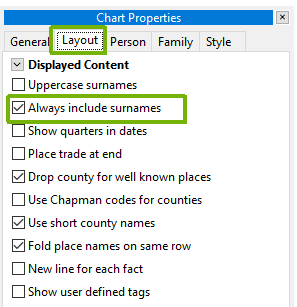
By default, surnames are shown for everyone on the chart. You can control this in two ways:
In editing mode, right-click on a person (or click …) and choose "Toggle Surname" to hide or show their surname on this chart.
On the Layout tab of the Chart Properties panel, uncheck Always include surnames. This hides most surnames — only people who have children retain theirs, as a visual anchor for family groups.
Note — When Always include surnames is off, "Toggle Surname" does the reverse — it forces a surname to be shown.