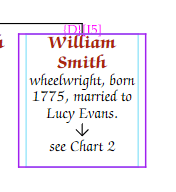
By default, a descendant chart includes up to 7 generations. Change this on the General tab of the Chart Properties panel.
To prevent the chart from following a particular person’s descendants, select them in editing mode and go to the Person tab of the Chart Properties panel.
Enter text in the To Text(stops) box. The chart will show a down arrow with your text instead of following this person’s descendants. This is useful for splitting a large chart across multiple pages.
The Stop at me drop-down offers several levels:
| Option | Effect |
|---|---|
| Default | Shows the person with their spouse folded and a symbol indicating children exist elsewhere |
| Leaf | Shows only the person — ignores spouses and children |
| Quiet | Includes the spouse (folded) but ignores children |
| No children | Includes all spouses but ignores children |
| Ignore | The person is completely omitted from the chart |
The same stops are honoured by timeline charts when a manual strategy is selected. A timeline shows no spouses, so Default, Leaf, Quiet and No children all simply stop the walk at that person; on a manual ancestors timeline a stop halts the climb at that ancestor instead.